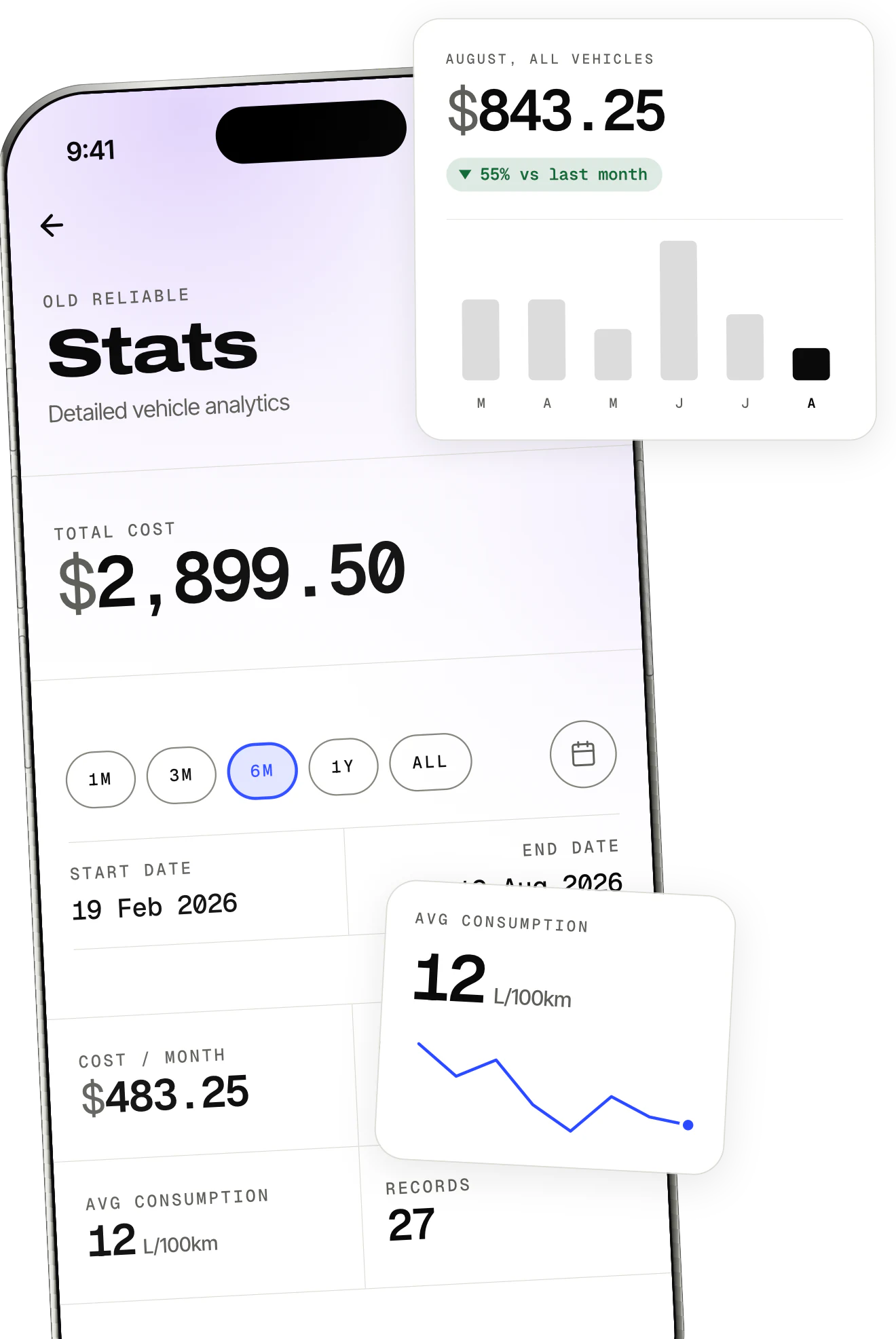
Import from Drivvo to OdoKeep
Move your fuel history with a CSV file. The import covers fill-ups, not services, expenses or attachments.
Four steps
Export from Drivvo
Open the vehicle's History screen, tap the export icon and choose CSV. Export availability depends on your Drivvo plan.
Keep only fill-ups
Use a file for one vehicle. If it includes services or other expenses, remove those rows from a copy before importing.
Open the file in OdoKeep
Add your vehicle, then go to Settings > Data > Import from another app. Choose the CSV and the destination vehicle.
Review and import
Check the columns, dates, decimal format and units. Compare the preview with your original records, then confirm the import.
Before you confirm
Check that the odometer is the total vehicle reading, not the distance of a trip.
Supported units are kilometres or miles, and litres or US gallons. Amounts use the currency selected in OdoKeep.
Import each file once. Importing it again creates duplicates.